Posts

Showing posts with the label Salesforce

Capgemini Salesforce Hackathon Oct-2018
Image
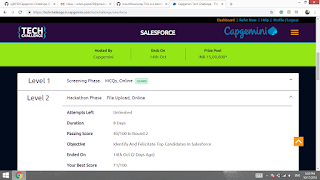
Description: Salesforce application which covers the following scenarios with the tools and technologies given below: List of records in first of the page, upon selecting a record, the details of it needs to be shown in the lower half using Lightning. List of records shown, with the new edit and delete functionality in Lightning. List of records, Functionality to select multiple records and update with a single value and delete multiple records at a time in lightning. Tools/Technology Usages: SFDC, APEX, Salesforce Lightning, CSS. I secure 27 rank in Capgemini Salesforce Hackathon 2018 in Round 2. Prerequisites:   Salesforce provides free developer account where you can develop force.com applications for free. Salesforce.com free developer account will be created through the URL http://developer.force.com.  Steps to create a free developer account in salesforce.com (Salesforce login) 1. First, you have a valid email Id.  2. Login to h...

Explain about “Too Many SOQL Error: 101”

“System.LimitException: Too many SOQL queries: 101”   This error occurs when you exceed SOQL queries governor limit. The actual limit is “you can run up to a total of 100 SOQL queries in a single call or context”. How to resolve this “Error: System.LimitException: Too many SOQL queries: 101” To fix the issue, change your code so that the number of SOQL fired is less than 100. If you need to change the context, you can use @future annotation which will run the code asynchronously. Avoid SOQL queries that are   inside FOR loops . Follow the key coding principals for Apex Code: 1. Avoid SOQL queries inside For loop. trigger accountTestTrggr on Account (before insert, before update) {   //This queries all Contacts related to the incoming Account records in a    // single SOQL query.   //This is also an example of how to use child relationships in SOQL   List<Account> accountsWithContacts = [select id, name, (select id,...

SOQL (Salesforce Object Query Language)

SOQL: SOQL (Salesforce Object Query Language) retrieves the records from the database by using a SELECT keyword.  SOQL allows you to specify the source object (such as Account), a list of fields to retrieve, and conditions for selecting rows in the source object. SOQL doesn’t support all advanced features of the SQL SELECT command. The syntax of SOQL,  SELECT  one or more fields   FROM object  WHERE  filter statements and, optionally, results are ordered. SOQL query is enclosed between square brackets. For example,   Account a = [Select ID, Name from Account where Name=’acc1′];   In the above query “a” variable stores the ID, Name of the all accounts with a name “acc1”. For Parent-Child SOQL: I have Contact   as  a Parent object & Account as a Child object. for(Contact c : [select id,accountId from Contact where Contact.AccountId =: ' 0010K00001cqUdv ']){ for(Account ac : [select name,de...

Role Hierarchies in Salesforce

Image
What is Role Hierarchy? A role hierarchy works together with sharing settings to determine the levels of access users have to your Salesforce data.  Users assigned to roles near the top of the hierarchy (normally the CEO, executives, and other management) get to access the data of all the users who fall directly below them in the hierarchy.  Each role in the hierarchy just represents a level of data access that a user or group of users needs. The role hierarchy enables these behaviors: A manager always has access to the same data as his or her employees, regardless of the org-wide default settings. Users who tend to need access to the same type of records can be grouped together. Depending on your sharing settings, roles can control the level of visibility that users have into your Salesforce data.   Create a Role Hierarchy: From Setup, use the Quick Find box to find  Roles . Just under the company name, click  Add Role . In the  Label ...

Create Visualforce page using Standard Controller and Extensions in Salesforce

Image
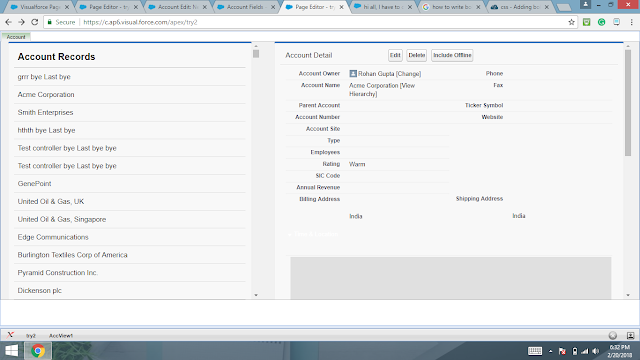
In this post, I am going to tell you how to use  Standard Object and Extensions in a visualforce page. Task:  When you click on an Account's record, it will display the fields data of selected record. First of all, I am going to design a visualforce page look like this. Function: We create a tab whose name is Account . It has two part one is Account Records and another is Account Detail as shown in the figure. In Account Records section, we display all records of the Account object. In Account Details section, we display the details of the selected Account's record. Source code: Visualforce page <apex:page showHeader="false" sidebar="false" standardController="Account" extensions="AccView1">     <link rel="stylesheet" href="https://maxcdn.bootstrapcdn.com/bootstrap/3.3.7/css/bootstrap.min.css"/>     <script src="https://ajax.googleapis.com/ajax/libs/jquery/3.3....

Profiles and Permission Sets in Salesforce

Image
Profile: A profile is a collection/group of settings and permissions that define what a user can do in Salesforce. A profile controls Object permissions, Field permissions, User permissions, Tab settings, Apex class access, Page Layouts, App settings, Visualforce page access, Record types, Login hours, and login IP ranges.   A profile can be assigned to many users, but a user can be assigned a single profile at a time. Types of profiles: Standard Profiles: By default, salesforce provides below standard profiles. We cannot delete standard ones like  Read Only, Standard User, Marketing User, System Administrator etc. Each of these standard ones includes a default set of permission for all of the standard object available on the platform. Custom Profiles: Custom ones defined by us. They can be deleted if there are no users assigned to that particular one. How to create Profiles in Salesforce: 1. Go to Setup .  2. Search for profiles in Quick Find...

Wrapper Class in Salesforce

What is the Wrapper Class? A wrapper or container class is a class, a data structure, or an abstract data type which contains different objects or collection of objects as its members. For example, we want to delete one or more than one account using checkbox and button. So wrapper class looks like shown below- Apex Class public class Checking {          public List<ContactWrp> cw {get;set;}          public Checking()          {                   for(Contact con : [select id,name from Contact])                   {                             cw.add(new ContactWrp(con,false));                   }          }          pu...

Salesforce Workflow Rules

Image
What is the workflow rules? Automation: Certain steps are defined and the system follows those step to execute the solution for the problem. Workflow Rules are the automated process to send E-mails Alerts, Field Update, Outbound Message, Existing Action on trigger criteria based requirements. How to create workflow rules? 1. Go to Setup. 2. Search for workflow in  Quick Find/Search  box and then clicks on  Workflow Rules. 3. Clicks on New Rule button.  4. Select an object which you want this workflow rule to apply and then clicks on the Next button. 5. Enter a Rule Name . 6. Enter a Description for the rule. 7. Select the evaluation criteria. created: Evaluate the rule criteria each time a record is created. With this option, the rule never runs more than once per record. created, and every time it's edited: Evaluate the rule criteria each time a record is created or updated. With this option, the ...